Start a new project with Pad
Create a Pad Cloud account, make a workspace for your project, and link it to the code on your machine, so your coding agent has a project to work from.
Plays from YouTube
2:29
Transcript
0:00 Introduction
In this tutorial, you'll create a Pad Cloud account, make a workspace for your project, and link it to the code on your machine. By the end, your coding agent will have a project to work from.
Create your account
Open app.getpad.dev/register in your browser, and fill in your details. Your username becomes part of every workspace address, so pick one you're happy to keep. When you create the account, Pad Cloud emails you a confirmation link. Open it, and you're ready to create.
Create a workspace
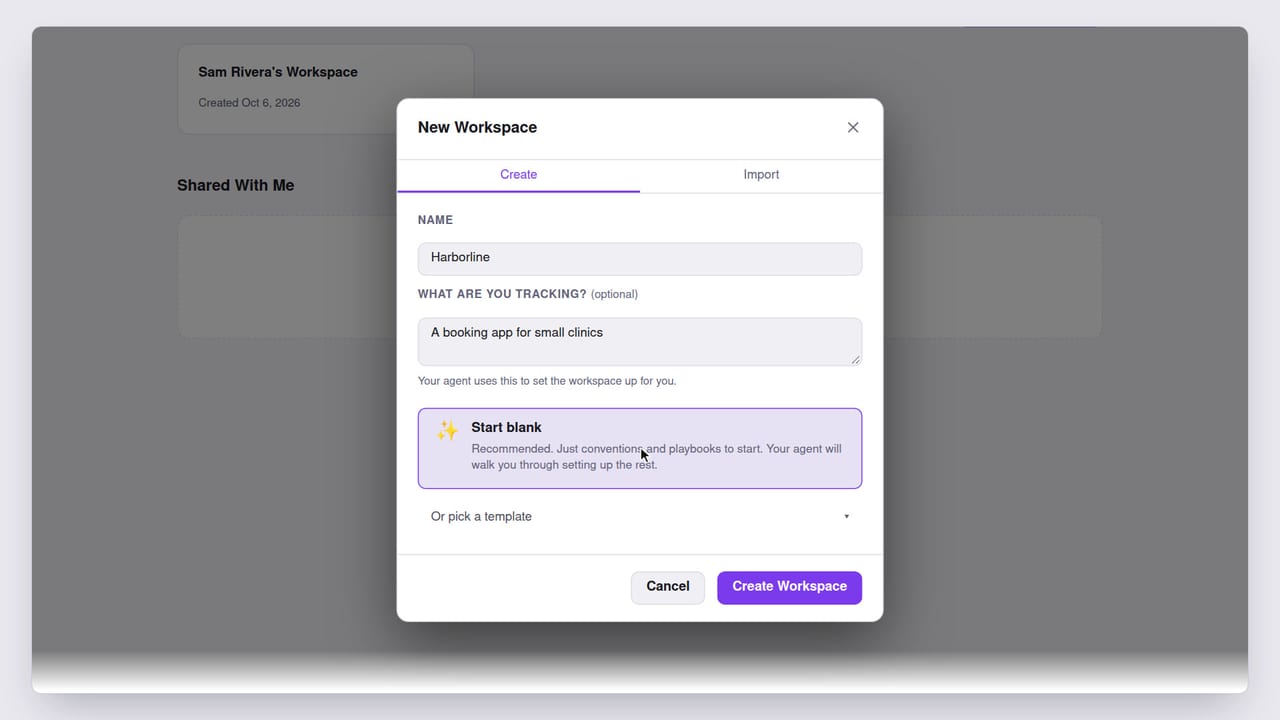
You land on your workspaces. Choose Create Workspace. Name it after your project. The second box is optional, but worth a sentence. Your agent reads it later, when it sets the workspace up for you. Leave Start blank selected. It begins with just conventions and playbooks, and your agent builds the rest with you.
Get the connect command
Pad opens the connect dialog straight away. The recommended path connects an agent over MCP: you paste one URL into your AI client, and sign in when it asks. Here we'll take the CLI path instead, because it also links the code folder on your machine to this workspace. Step one installs pad with Homebrew, if you don't have it yet. Step two is the line that matters. Copy it.
Link your project
In a terminal, go to your project folder, and paste the command. pad init points the command line at Pad Cloud, then asks you to sign in, in your browser. Check that it's your account, and approve. Back in the terminal, it links this folder to Harborline, and installs the /pad skill for the coding agents it finds.
Check the link
The link lives in a small file called .pad.toml. It names the workspace and the server, and holds no secrets, so you can commit it.
What you have now
You now have a Pad Cloud workspace, linked to your project, with the /pad skill ready for your agent. In the project folder you just linked, start Claude Code, and type /pad onboard. Your agent loads the workspace, reads the onboarding playbook and your project, and starts by asking how you work. The next tutorial picks up from here.
Next tutorial
Set up your workspace with /pad onboardThe workspace and people in this video are fictional. The screens are Pad's real UI, rendered from code, and the narration is a synthetic voice.
All tutorials